Using the Campaign Notes Editor
Last updated Oct 3, 2026
Opening the Notes Editor
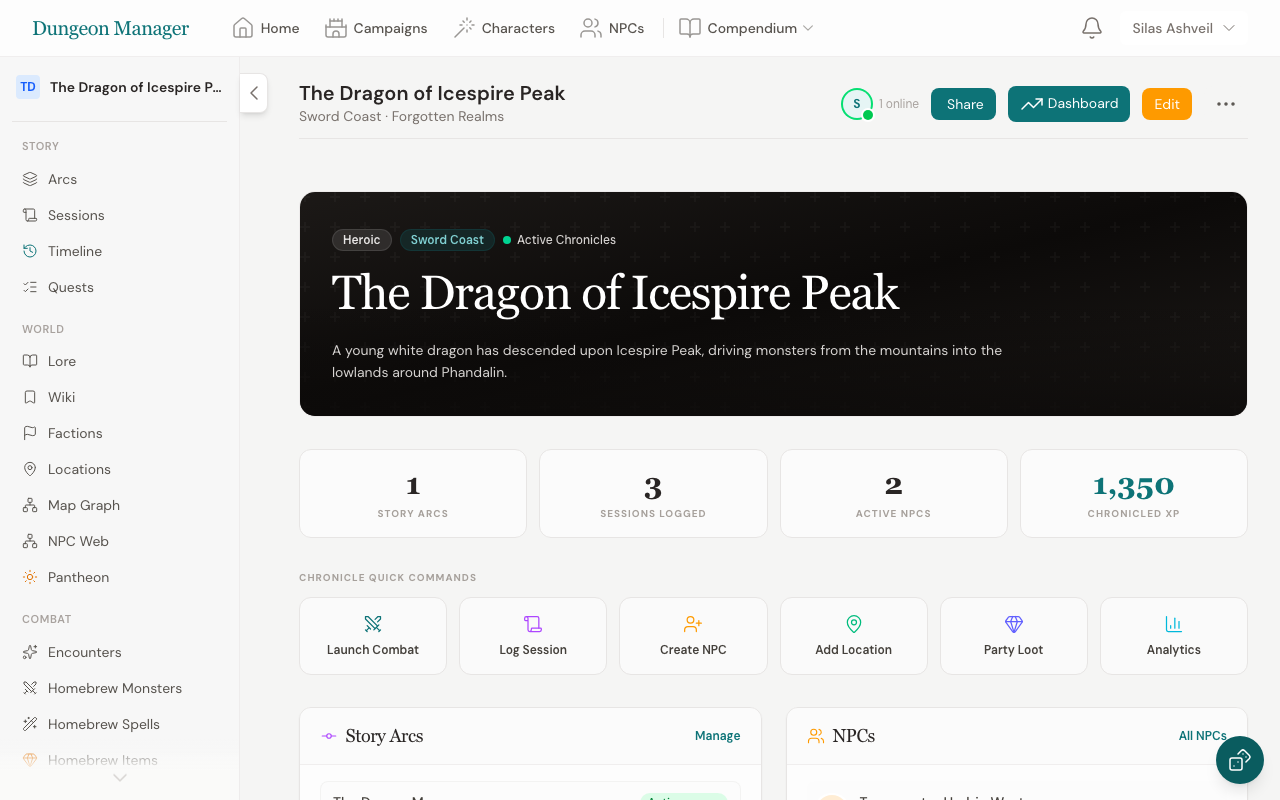
- Go to your campaign page
- Click the three-dot menu (more actions)
- Select Edit Notes
The first time you open the editor, Dungeon Manager auto-generates comprehensive notes from all your campaign data — party roster, NPCs, sessions, encounters, quests, locations, factions, and more.
Editing Your Notes
The editor provides a full markdown toolbar:
- Bold, Italic, and Headings
- Blockquotes, bullet lists, and numbered lists
- Tables and horizontal rules
- Links
- Side-by-side live preview
- Fullscreen distraction-free mode
Your notes autosave about two seconds after you stop typing (and right after you insert something from Quick DM Tools). The status next to the Save button shows Saved · 10:42, Saving…, or Unsaved changes, and your browser warns you before you leave with unsaved changes. You can still click Save at any time.
If you have the notes open in two tabs and save different text in each, the second tab shows a Notes changed in another tab banner instead of silently overwriting the first. Choose Reload to see the newer notes, or Overwrite to keep what's in the editor.
Quick DM Tools
Click the ✨ Quick DM Tools button in the toolbar (or press Ctrl/Cmd + Shift + G) to open the generator drawer without leaving your notes:
- NPC, Tavern & Rumors, Loot, and Names tabs, each with a couple of option chips (role, quality, tone, tier…). Loot defaults to your party's tier.
- Insert into Notes drops the result in as Markdown at the cursor you left. Re-roll gives a new result, Copy copies the Markdown, and Insert & save NPC also creates the NPC in your campaign and inserts a link to it.
- The drawer stays open so you can keep rolling. Press Esc or the ✕ to close it.
Slash commands
Type /npc, /rumor, /loot, or /tavern followed by a space (or press Enter right after the command) and a small preview appears at your cursor:
- Enter inserts the result in place of the command
- Tab re-rolls
- Esc closes the preview and leaves what you typed alone
Add words after the command to steer it: /npc merchant dwarf, /loot 5-10 hoard, /rumor dark port. Words it doesn't recognise are ignored. Rumors that mention one of your campaign's NPCs or locations insert as links to them.
Regenerating Notes
When you add new data to your campaign (new NPCs, sessions, encounters, etc.), you can refresh your notes:
- Click Regenerate from Data
- A panel appears showing the freshly generated notes
- Choose Replace Current Notes to use the new version, or Keep Current to dismiss
This lets you incorporate new campaign data without losing your custom edits — review the regenerated content and decide what to keep.
Downloading Your Notes
Two export options are available from the toolbar:
- .md — Downloads a Markdown file you can open in any text editor (Obsidian, Notion, VS Code, Notepad)
- PDF — Downloads a professionally styled PDF with Dungeon Manager branding, perfect for printing
Tips
- Use the side-by-side preview to see how your markdown renders as you type
- The editor supports dark mode automatically
- Notes are saved per-campaign — each campaign has its own notes document
- The word and line count is shown in the editor status bar
Was this article helpful?
Thanks for the feedback!