Session Scheduling
Last updated Oct 3, 2026
Creating a Session Proposal
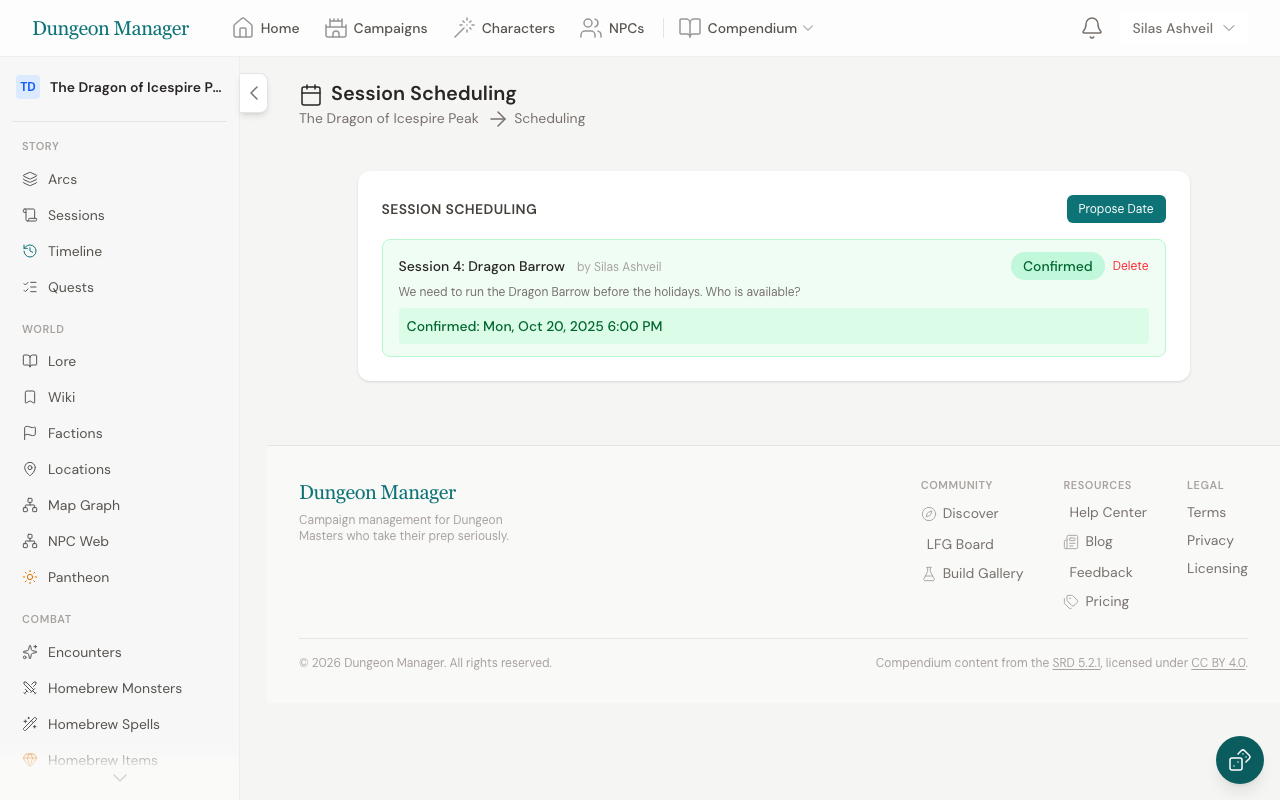
- Go to your campaign → Scheduling
- Click Propose Date
- Add one or more proposed dates for the session
- Use Copy poll link or Copy message for group chat to share it. Anyone with the link can vote, no account needed.
Times are shown in your own time zone (detected automatically; change it under Settings → Preferences → Time Zone). Players see each slot converted to their local time.
Suggested Polls for Quiet Campaigns
If a campaign has gone about three weeks without a session, Dungeon Manager emails you a draft poll with suggested times (your usual game night if you have one, otherwise the next two weekends, never less than three days away). A draft is visible only to you:
- Open the draft from the email (or from Scheduling)
- Add or remove slots, or fix the time zone
- Click Open poll & copy message. The poll goes live and a ready-made message is copied for your group chat. You can also post it straight to Discord if a webhook is connected.
You can turn these emails off under Settings → Preferences → Email Notifications → Stalled Campaign Nudges.
How Players Respond
Players vote from the poll link, or from the Scheduling page in the player portal. For each date they can mark:
- Yes — they can make it
- If needed — they might be able to attend
- No — they can't make it
On the public poll page, players tap their character's name (or type a name if they haven't joined yet), then tap an answer for each slot. Coming back from the same browser lets them edit their votes. Their votes and any votes cast while logged in count as one.
Confirming a Date
Responses update on their own every few seconds. The DM view highlights the best slot (a "Yes" counts double an "If needed") and lists who hasn't voted yet. You'll also get a nudge when everyone has voted, or when the earliest slot is two days away.
- Click Confirm best slot, or Confirm on any date
- The party is notified (in-app and by email, unless they've turned session reminders off), and Discord is told if connected
- The poll page shows the confirmed time with Add to Google Calendar and .ics download buttons
After the session date passes, you'll see "How did Session N go? Log it →" on your campaign and dashboard, with the date filled in.
Managing Proposals
- Close a proposal when you've made your decision
- Delete proposals you no longer need
- Add or remove proposed dates after creation
Session Reminders
Once a session date is confirmed, Dungeon Manager can send automated reminders:
- Reminders are sent 24 hours before the scheduled session time
- Both email and in-app notifications are delivered
- Reminders include:
- The campaign name and scheduled date/time
- A summary of the previous session (so everyone remembers where you left off)
- An optional custom message from the DM
- Reminders go to the DM and all accepted players in the campaign
- Players can control notification preferences in their Account Settings
Sending a Manual Reminder
You can also send reminders manually:
- Go to your campaign → Scheduling
- Click Send Reminder on a confirmed proposal
- Optionally add a custom message
- Click Send — all players receive the notification immediately
Was this article helpful?
Thanks for the feedback!